
A self-order kiosk that works with the register
Customers order on their own — from a picture menu, in their own language — and pay by card at the kiosk or at the counter. The order lands straight on the register's orders screen, and the tickets go to the kitchen.
In short
What is the Koopax kiosk?
The Koopax kiosk is a self-ordering station for restaurants, pizzerias, ice-cream parlours and cafés: the customer picks from a picture menu, builds the dish and pays — without queuing for the cashier. It works together with the Koopax register and Koopax Online — orders arrive on the register's orders screen, and promotions and the sold-out mark are shared — or as a standalone kiosk with its own menu, printer and reports.
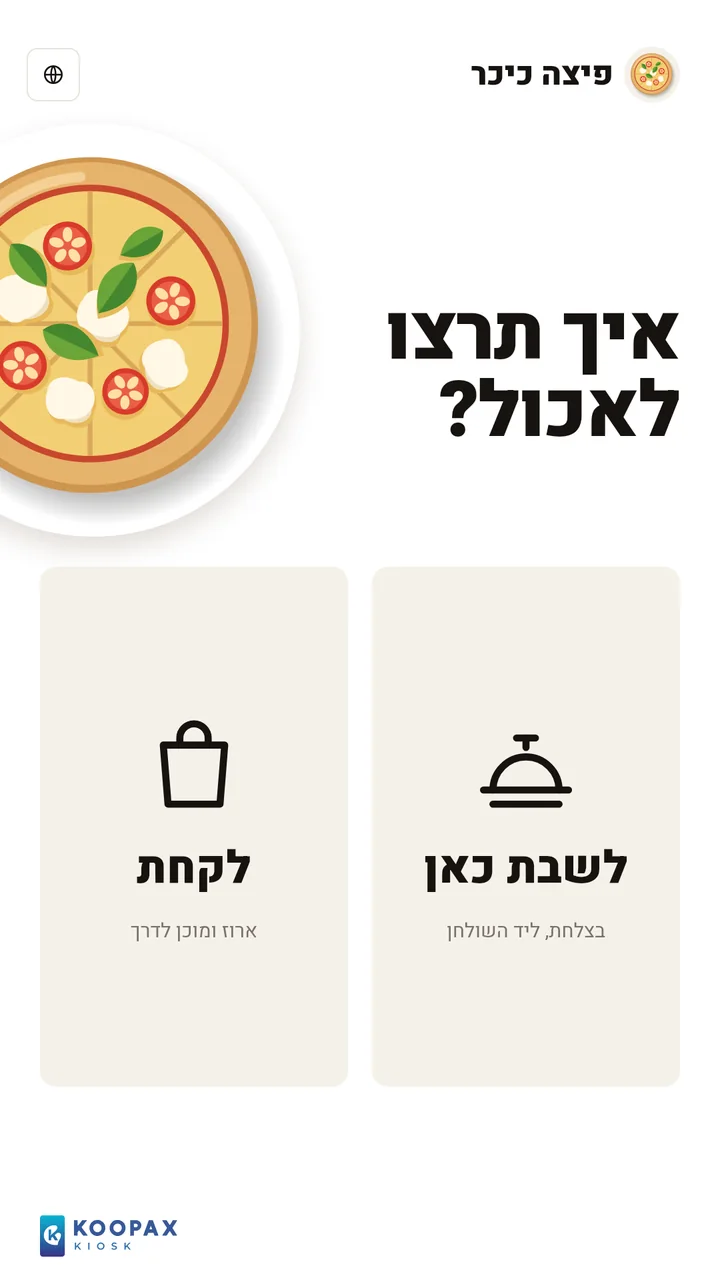
Customers order in Hebrew, English or Arabic, choose sizes, toppings and meals — and on a pizza, toppings for each half. At the end they pay by card on the terminal beside the screen, or choose to pay at the counter and get a slip with an order number.
The kiosk prints kitchen and bar tickets, produces X and Z reports for what was paid at it, and keeps the menu, the orders and the reports on the device itself — so it keeps working when the internet drops.
The kiosk's screens
What the customer sees
Real screenshots from the kiosk, in Hebrew — from the menu to the order number.
 01
A menu with pictures
Categories down the side, a picture for every product, and a promotion marked on the product it applies to.
 02
Half-and-half and toppings
On a pizza, toppings are picked for each half or for the whole pizza, and the price updates as you go.
 03
Meals and choices
In a meal the customer picks what it includes, and a product that has sold out is marked and cannot be chosen.
 04
Your order
Before paying, the customer sees everything, changes quantities and chooses eat in or take away.
 05
Card or at the counter
Pay by card or phone on the terminal beside the screen, or choose to pay at the counter and get a slip with an order number.
 06
Order number
At the end the customer gets an order number, and is called when the order is ready.
What the kiosk does
Nine capabilities that make the kiosk one more cashier — with no shift and no queue.
Hebrew, English and Arabic
The customer picks a language on the opening screen and the menu follows. A product not yet translated shows in Hebrew.
Pictures from the Koopax library
Each product gets a ready-made illustration from the Koopax picture library, suggested from the product's name — no photographer, no designer.
Meals, toppings and half-and-half
Sizes, paid or free toppings, requests such as "no onion", meals built step by step and pizza with toppings for each half.
The register's promotions
When the kiosk is connected to the store, it shows and applies the promotions set up on the register — no need to set them up twice.
Card at the kiosk or pay at the counter
The customer pays by card on the terminal beside the screen, or chooses to pay at the counter — and the order waits there for payment.
Tickets to the kitchen and bar
Every order goes to the ticket printers, and each printer gets only its own categories — pizzas to the kitchen, drinks to the bar.
Sold out in one tap
Mark a product sold out until tomorrow morning, for two hours, or until you bring it back. When the kiosk is connected, the mark is shared with the register, the website and the other kiosks.
X and Z reports
X and Z reports for what was paid at the kiosk — on screen, printed or by email — plus monthly and annual reports.
Works without internet
The menu, the orders and the reports are kept on the kiosk itself. When the internet returns, whatever needs to reach Koopax Online and the register goes up.
On the register's side
The order reaches the register — stage by stage
When the kiosk is connected to your store in Koopax Online, every order appears on the Koopax register's orders screen, in the column of the stage it is at.
Awaiting payment
Orders the customer chose to pay for at the counter. "Load to bill" puts them on a bill and they are paid as usual.
In preparation
An order paid at the kiosk lands here straight away, with no extra tap. "Ready" when it goes out.
Ready for pickup
OptionalA stage you switch on in the register's settings: "Ready" moves the order here, and "Handed over" completes it.
Done
The orders handed over since the last Z report.
An SMS when the order is ready
A customer who left a phone number at the kiosk gets one message when "Ready" is pressed. It is an add-on Koopax switches on for the business.
The Z report leaves no order hanging
A Z cannot be closed while an order is open: the register lists the open orders and lets you finish each one from the same screen.
A kiosk that is not connected to a register works on its own: its orders, tickets and reports stay on the kiosk.
For the owner
Quick to set up, easy to run
No building a menu from scratch, and no waiting for a technician to visit.
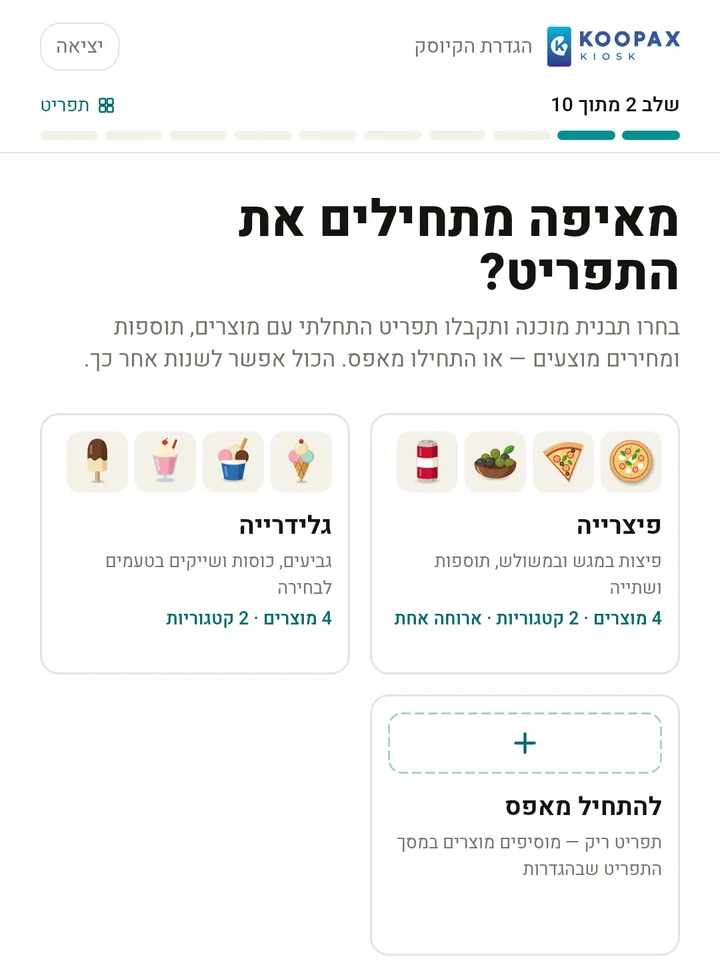
Starter menu templates
During setup, pick a template — pizzeria, ice-cream parlour, burger bar, falafel and shawarma, café and bakery, juices and shakes, sushi or hummus bar — and get a starter menu with products, toppings and pictures. Template prices are suggestions, marked for review until you confirm them. You can also start from scratch, and a connected kiosk can import the menu from the register.
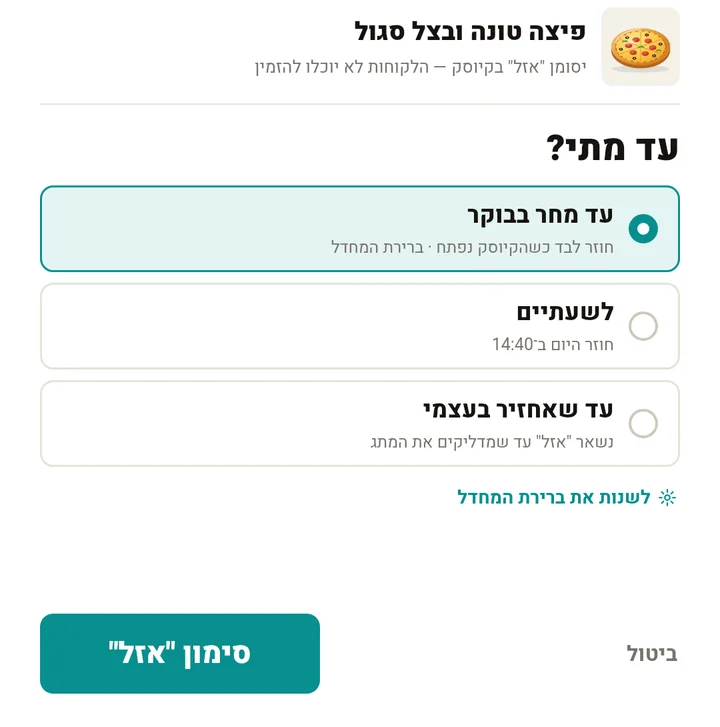
Sold out for as long as needed
Pick a product and mark it sold out — until tomorrow morning, for two hours, or until you bring it back yourself. Customers cannot order it until then.
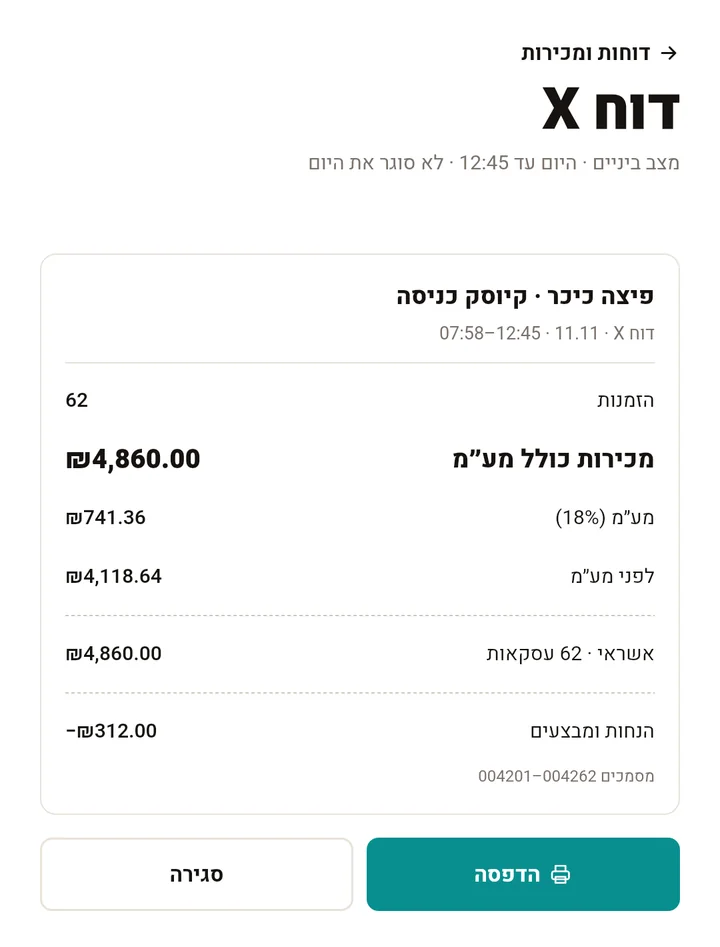
Reports on what was paid at the kiosk
An X report mid-day and a Z report at the end of it: orders, sales, VAT, card and discounts — on screen, printed or by email.
Automatic menu translation
A button that translates whatever on the menu is not yet in English or Arabic. An add-on Koopax switches on for the kiosk.
Remote setup and support
Koopax technicians connect to the kiosk remotely — they see the screen, change settings and the menu, and help with setup.
Open-format file
Export an open-format (מבנה אחיד) file for the Tax Authority and your accountant, for any period, straight from the kiosk.
Connected to the register, or standalone
The same kiosk suits a business that already runs the Koopax register, and one that only wants an ordering station.
With the Koopax register and Koopax Online
The kiosk connects to your store in Koopax Online and works together with the register.
- Orders arrive on the register's orders screen
- Promotions and the sold-out mark are shared
- Import the menu from the register
- See the kiosk's orders and reports on the website
Standalone kiosk
No register: the kiosk runs everything itself.
- A menu and promotions edited on the kiosk
- A receipt printer and ticket printers
- X and Z reports, monthly and annual
- Open-format export
Questions and answers
Questions about the kiosk
Short answers to what restaurant owners ask us.
What is the Koopax self-order kiosk?
The Koopax self-order kiosk is a screen where customers order and pay on their own: they pick from a picture menu in Hebrew, English or Arabic, build a dish or a meal, and pay by card at the kiosk or at the counter. It suits restaurants, pizzerias, ice-cream parlours, burger bars and cafés, and works with the Koopax register or as a standalone kiosk.
Does the kiosk work with the register?
Yes — with the Koopax register, when the kiosk is connected to the store in Koopax Online. Orders arrive on the register's orders screen by stage (awaiting payment, in preparation and, if you switch it on, ready for pickup), and promotions and the sold-out mark are shared between the register and the kiosk. Without a register, the kiosk works as a standalone station with its own menu, printer and reports.
How does the customer pay at the kiosk?
By card or phone, on a card terminal connected to the kiosk (the kiosk works with Z-Credit, Dangot and Wisepay terminals), or with "pay at the counter": the customer gets a slip with an order number, the order waits on the register under "Awaiting payment", and the cashier puts it on a bill with "Load to bill".
Does an order paid at the kiosk go into the register's Z report?
No. The kiosk has its own X and Z reports, and they include only what was paid at the kiosk. An order the customer chose to pay for at the counter is charged at the register and goes into the register's Z report — so no sale is counted twice.
What happens when the internet drops?
The kiosk keeps working: the menu, the orders and the reports are kept on the kiosk itself. Whatever needs to reach Koopax Online — orders, reports and menu changes — goes up when the connection returns.
How do I set up the kiosk's menu?
Pick a ready-made menu template — a pizzeria, an ice-cream parlour or a burger bar, for example — and get a starter menu with products, toppings and pictures, its prices marked for review. You can also start from scratch, and a kiosk connected to the store can import the menu from the register. Koopax technicians can help with the setup remotely.
More in Koopax
Other solutions
- Snooker and pay-by-timeA clock on every table, priced automaticallyLearn more
- Table mapA floor-plan editor and live occupancy for restaurants and barsLearn more
- 10bis, Cibus and PelecardMeal cards and card processing in one registerLearn more
- Koopax OnlineManage the register remotely, in real timeLearn more
- Electronic shelf labelsShelf prices synced from the registerLearn more
Want to see the kiosk in action?
In a short demo we will show you an order from the kiosk — from the menu, through payment, to the register and the kitchen.
Book a demo